


You can turn multiple Live Photos shot on your iPhone into a video. Simply select a group of Live Photos taken in a burst, and you can create a single, stitched-together video that you can save to your library and share on social media. It’s a much more accessible way to enjoy those little snippets of video.
Here’s how it’s done.
Turn Live Photos into video you can save and share
With the Live Photos setting turned on, your iPhone records brief videos — even when you’re just taking pictures. Introduced with the iPhone 6s in 2015, the feature captures 1.5 seconds of video before and after you snap each photo.
You can see the super-short videos later: If you tap and hold on a picture, you can see it animate. (You can also easily create a GIF from your Live Photo, pick a new keyframe to use as a thumbnail, and add other cool effects like Bounce and Long Exposure.)
But what if you want a longer video? The Photos app makes it easy. First, though, you need to make sure Live Photos is turned on. Verify that the Live Photos icon (three concentric circles at the top-right of the Camera app) is not crossed out. Then, once you save some Live Photos to your photo library, you can easily combine them into a longer video with these two easy steps.
Table of contents: Turn Live Photos into a video you can save and share
- Select a series of Live Photos
- Tap “Save as Video”
- How well does it work?
- Take a photo and record video at the same time
- More Camera and Photos features
1. Select a series of Live Photos
Screenshot: D. Griffin Jones/Cult of Mac
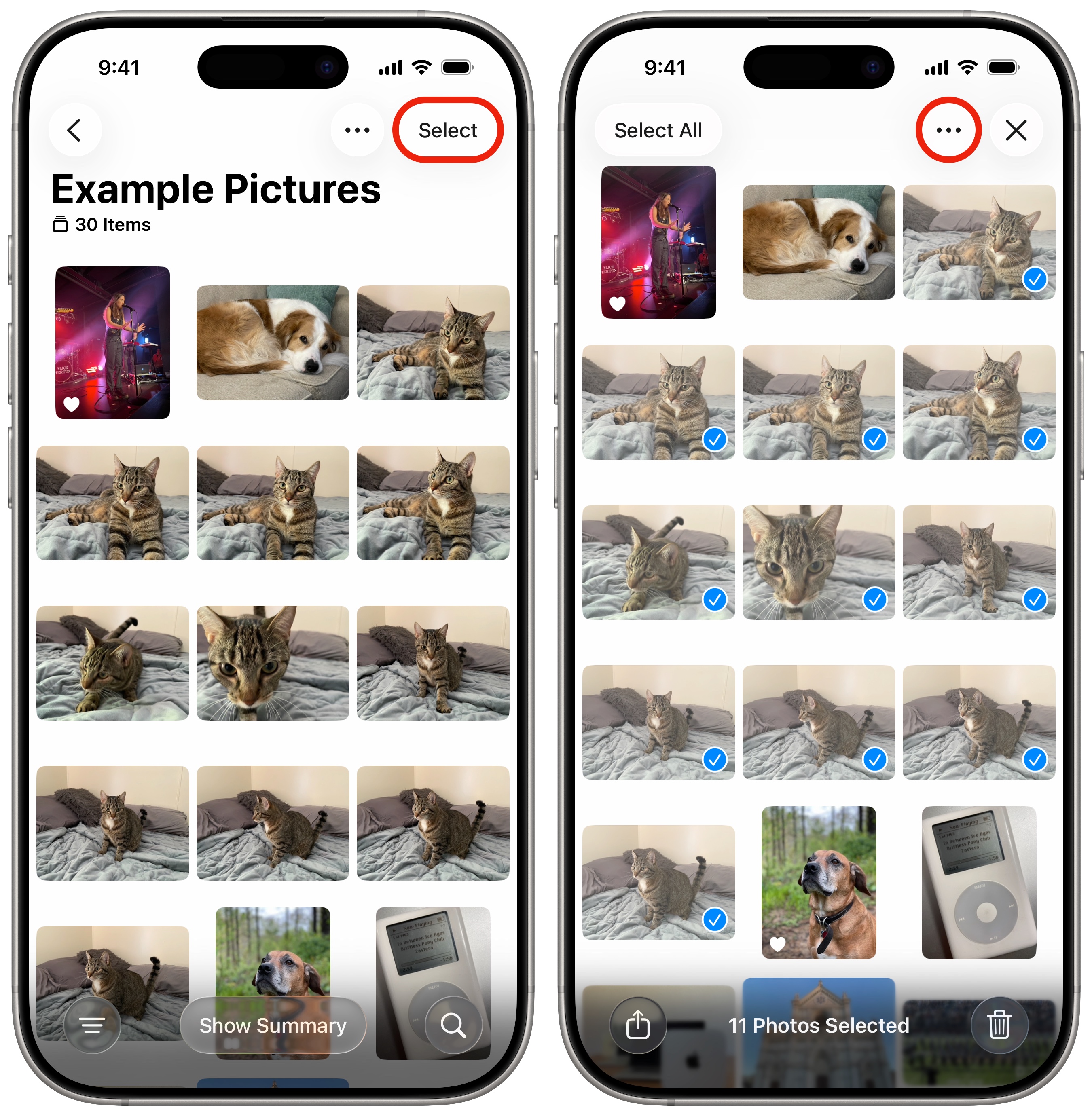
Ready to convert some Live Photos into a video? First, open the Photos app. You want to look for a set of Live Photos that are somewhat continuous — a bunch taken one right after another.
If you save a lot of screenshots or Snapchats in your photo library, it might be hard to find pictures you’ve taken with the iPhone camera in the mix. To find your Live Photos quickly, tap the Albums tab and scroll down to tap Live Photos. When you’ve found a set, tap the Select button in the top right of the app. You can tap and drag to select a whole range of photos at once. (Did you know that? If not, you need to read these how-tos: 3 secret iPhone gestures you need to know and 5 more secret iPhone gestures you need to know.)
2. Save multiple Live Photos as a single video
Screenshot: dgjcom
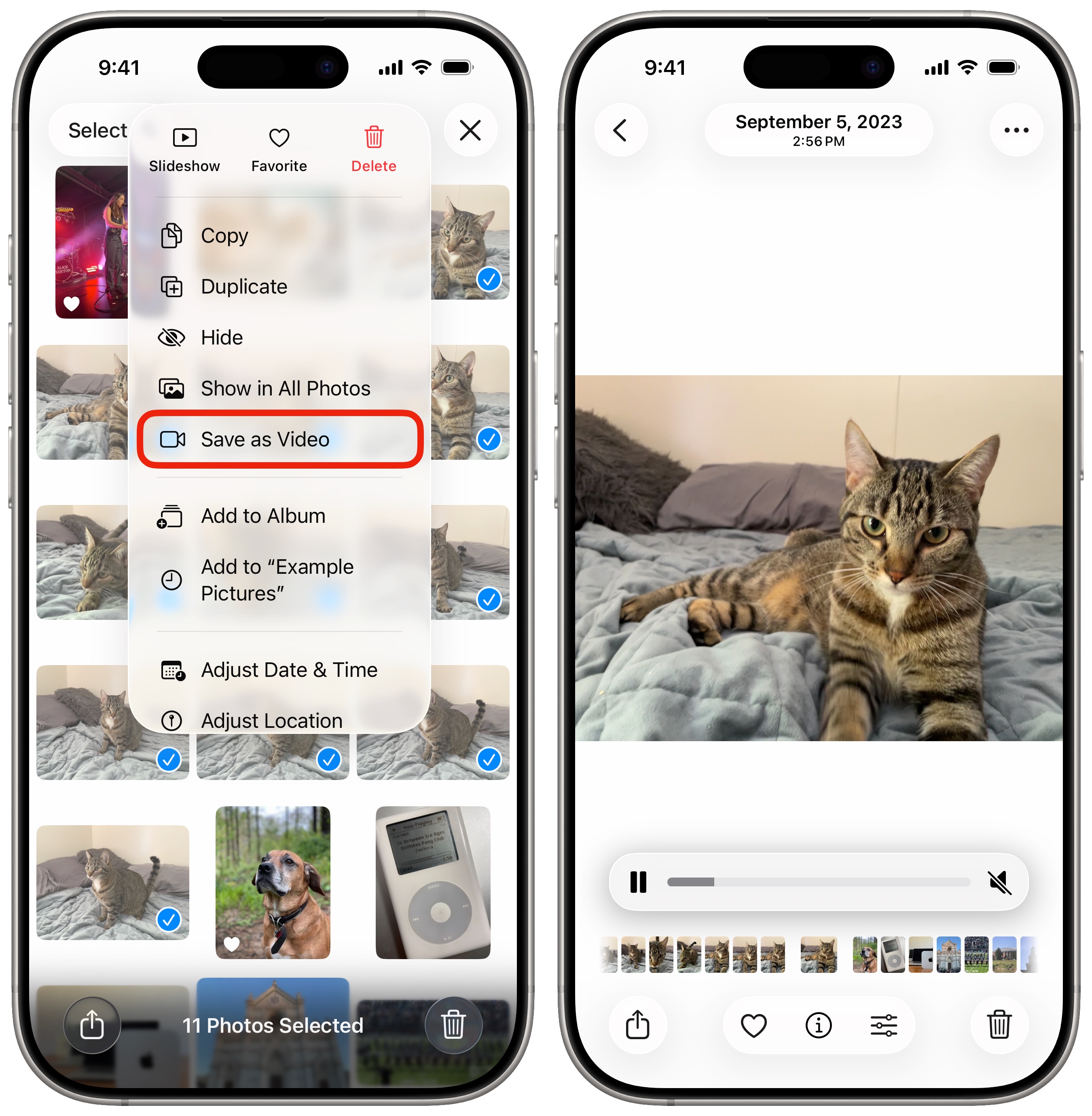
Once you select the range of Live Photos you want to turn into a video, tap the ⋯ button in the bottom right and tap Save as Video. After a few moments, you’ll see a new video in your Photos library. Tap it to play.
Here is the result from merging the Live Photos shown in the above screenshots:
What do you get when you merge Live Photos into a video?
As you’ll soon find out if you try this at home, the results are a little mixed when you turn your Live Photos into a video. Live Photos don’t record video at an especially high frame rate, so even though it’s a video, it will look choppy. You’ll also learn that three seconds really isn’t a long time. If the Live Photo snippets don’t overlap, you’ll see a jump cut between the shots in the video you create.
Still, while it’s not perfect, this is a great way to make better use of the video portions of Live Photos. It’s a more accessible way to watch them than tapping and holding on each picture. If you took a bunch of Live Photos on your vacation, but forgot to record any video, this gives you a way to cheat.
Take a photo and record video at the same time
If you want to simultaneously capture photos and video, there’s another feature you can try. As you record a video, tap the white photo button when you want to grab a separate picture. The trade-off is that the photos won’t be in as high resolution, but you’ll have a much nicer video if that’s what you care about more.
More fun with iPhone photos
- Hide photos from your library to keep secret and/or illicit images out of your main Photos library. Find them in the Hidden album.
- Tag photos with the names of your friends, family members and pets so you can easily find pictures of them later. The Photos app will detect pictures of people automatically — you just need to give them a name.
- Find duplicate photos to delete copies that clutter up your library.
- Make custom stickers from photos on your iPhone and send them in iMessage, Snapchat and WhatsApp.
- Crop, skew and rotate a photo to fix the perspective or angle it was taken from, correct some fisheye distortion on an ultrawide photo and more.
We originally published this article on how to turn Live Photos into a video on September 6, 2023. We updated it with the latest information on July 17, 2024, and December 23, 2025.

D. Griffin Jones is a writer, podcaster and video producer for Cult of Mac. Griffin has been a passionate computer enthusiast since 2002, when he got his first PC — but since getting a Mac in 2008, he hasn’t turned back. His skills in graphic and web design, along with video and podcast editing, are self-taught over 20+ years. Griffin has a bachelor’s degree in computer science and has written several (unpublished) apps for Mac and iOS. His collection of old computers is made up of 40+ desktops, laptops, PDAs and devices, dating back to the early ’80s. He brings all of these creative and technical skills, along with a deep knowledge of Apple history, into his work for Cult of Mac.

